
How to register for a race
Pick a class, discounted pricing is applied automatically, and the entry fee follows the organizer's terms.
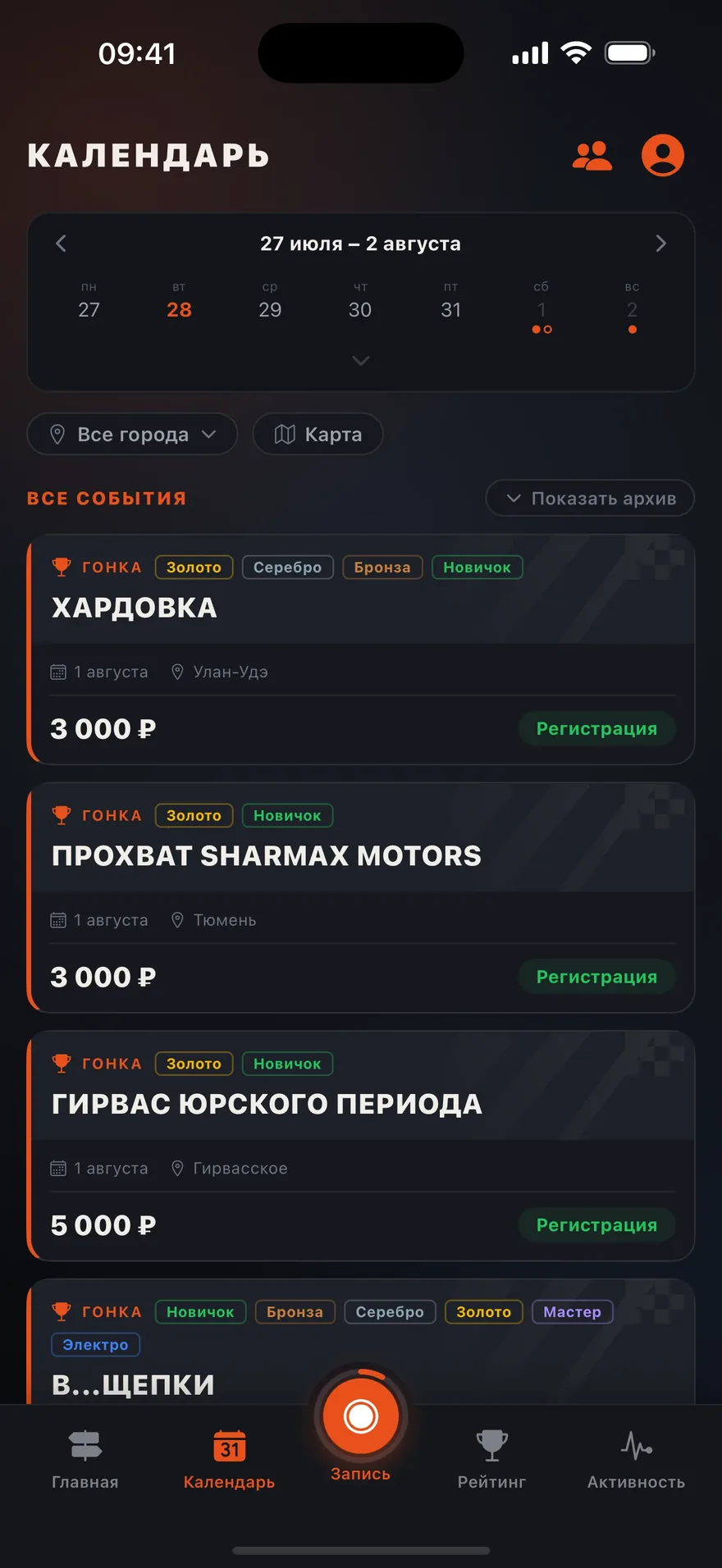
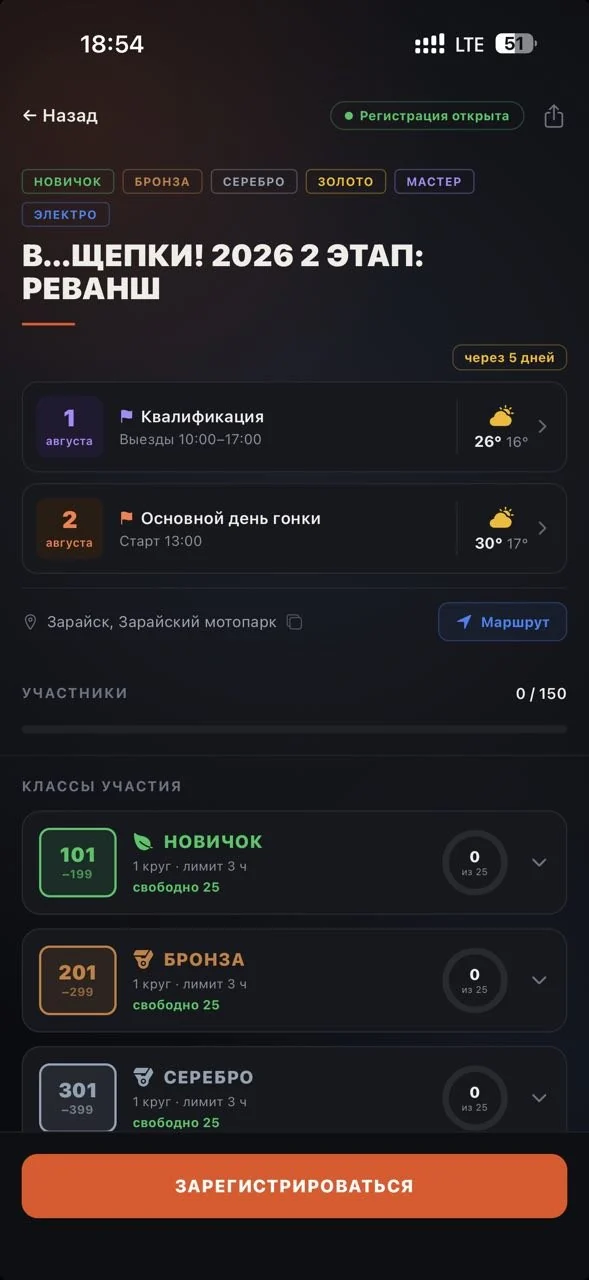
- Find the race in the calendar — filters by region and type will help.
- Pick a class on the event page. If the organizer offers discounts for women or kids, the price is recalculated automatically.
- Check the admission requirements: the documents you need are listed right on the event (see the article about documents).
- Confirm your registration. Your status and start number will appear under “My registration” on the race page.
No spots left or the registration deadline has passed? The page says “registration closed” — keep an eye on the calendar: organizers sometimes raise the limits.
Booking a tour. The tour page opens with the “Booking” card: price per rider, “Spots available” (only guests count — the tour team doesn’t take spots), extras to tick and the “Book a spot” button. Below is everything about the tour: “About the tour”, “Price includes” and “Paid separately”, “Accommodation” with room options, the day-by-day itinerary marked “Riding day” and “Race”, “Who is this tour for” (level and requirements), documents, “Tour team” and “Tour participants”. Questions before booking — “Ask the organizer”. Tap a person in “Tour participants” to open their rider passport; under the name you see the bike and how many tours and rides they have (unless they hid their stats). The magnifier in the header opens a name search; a long list loads more with “Show more”.
Booked? The card becomes “Your booking”: status (“Under review”, “Confirmed · awaiting payment”, “Paid”), the steps entry → confirmation → payment → documents → room and one button for what to do now — pay, upload a document or download the offline map. “Tour payment” lists the price, extras, discount, total, “Paid” and “Due”. Until the entry is confirmed you can withdraw it. Below is the “Tour discussion” card: the latest message and the number of new ones; tap it to open the chat of riders and the team. Under “Tour participants” there is “Invite friends or a club”: invite a friend (they get a notification and book a spot themselves) or, if you are a club admin, the whole club — the tour appears in the club feed. Tiles: the organizer (message them directly), the offline map and the “Gear list” (only you see the ticks). During the tour the date card shows today — start time, distance, your room and weather; track recording comes first, the SOS button is below, and today is highlighted in the itinerary. After the tour you get “My track” (upload a file or link a ride from your log) and “Tour participants” with everyone’s distance.
All spots booked? In the “Booking” card tap “Join the waitlist”. Tick the extras you want and join the queue: the card shows your position. When a spot frees up (someone drops out or the organizer adds spots), your entry goes to the organizer automatically and we send a notification. “Leave the waitlist” is in the same place.
Entry rejected? “My registration” on the event page tells you why. Fix what the organizer named — upload the missing document, for example — and tap “Apply again”. The entry goes back to the organizer for review; a payment you already made is kept.
Was this article helpful?No — ask a question