
How to build a ride movie
The movie is edited automatically from your recorded track; the first one each month is free.
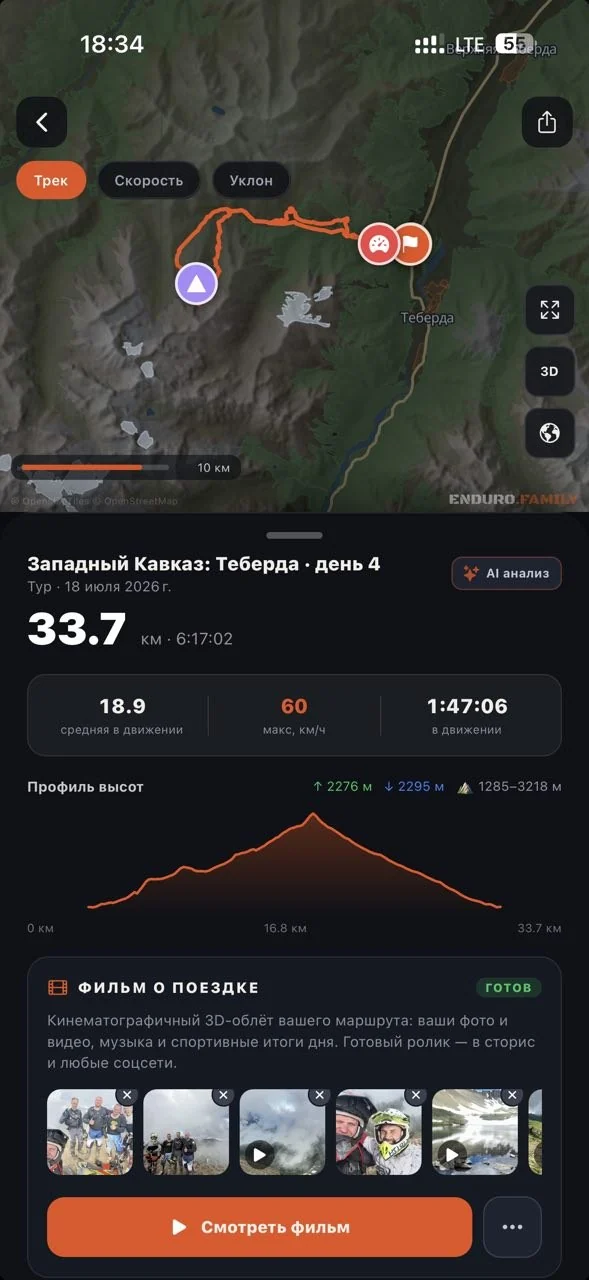
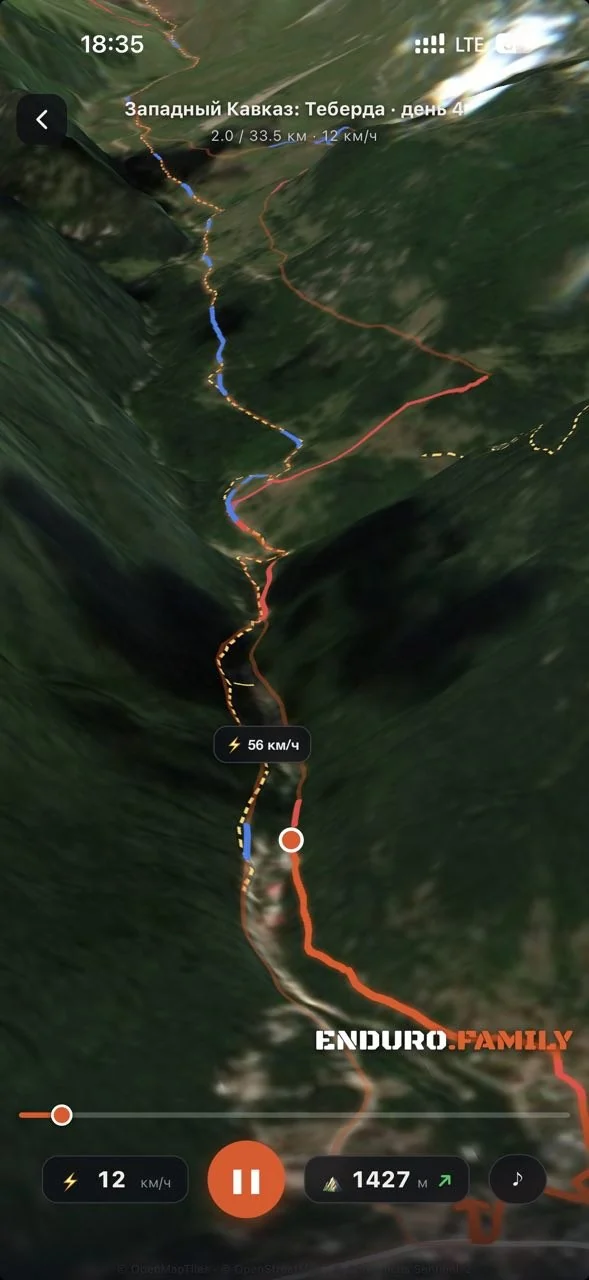
- Record your ride as usual — no need to film anything.
- Open the ride and pull the sheet up — the “Ride movie” block. If you like, add your own footage with the plus in the inserts strip (up to 10 photos and videos); each lands at the exact point of the route where it was shot.
- Tap “Create ride movie”. The app builds a flyover of your track above satellite terrain, adds an intro, a speed overlay, and closing titles with the day’s totals.
- While the movie is being built, the button shows progress. No need to wait on the screen — you’ll get a notification when the clip is ready.
When the movie is ready:
- The button changes to “Watch movie” — the clip opens right in the app.
- To send it, use the “Share” tile on the ride, item “Ride movie”: from there it goes to any messenger or social network.
- The app also posts the clip to your stories, where it lives for a day, like a regular story.
- Not happy with it? The round arrow button next to “Watch movie” rebuilds the clip — for example, after you’ve added new footage. A rebuild spends one of the month’s generations, so the app will ask you to confirm.
The first movie in each calendar month is built for free for every user. On the free plan the clip goes into the shared queue and comes out with the app’s watermark — a subscription removes both.
Was this article helpful?No — ask a question